Omarchy plugin · Wear OS app · Watch face

Your AI quotas, on your wrist.

A dock widget, a Wear OS app, and a watch face. The laptop reads every AI CLI agent on your machine; four gauges on your wrist show how much Claude, Grok or Antigravity you have left. Both watch apps are live on Google Play.

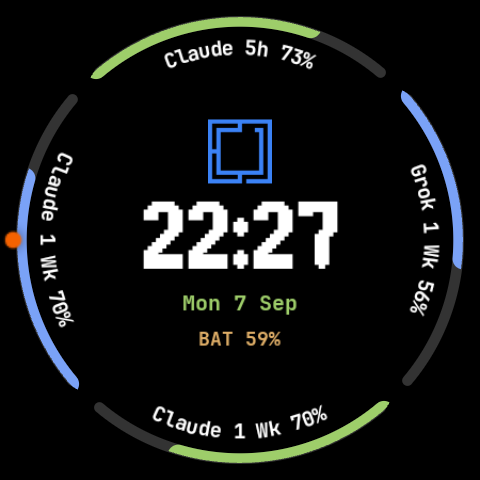
The Omarchy AI watch face on a Galaxy Watch: four quota arcs around the rim on a black ground, each labelled with an agent and a percentage, a large pixel clock in the middle.

Live on a Galaxy Watch. Four agents, four gauges.

What it does

The laptop does the work: it finds your agents, reads their limits and hands the numbers to the watch. The watch just draws them.

◴

Four quota gauges

Top, right, bottom and left arcs map to four limits you choose. Each one carries its agent's name and percentage around the rim.

⌕

Finds your agents

Claude Code, Antigravity, Grok, Codex and OpenAI are discovered from what is actually installed. Session, weekly and model-level limits all show up as pickable gauges.

⇄

Pairing without typing

Click Add another watch on the laptop, tap Connect on the watch. The window lasts 120 seconds and closes the moment one device takes it. A 4-digit code is still there as a fallback.

⚿

Token auth, enforced

The bearer token issued at pairing is checked on every request. Only ping and the pairing handshake are open, so nobody else on the network can read your usage.

⟳

Heals its own address

DHCP moves the laptop and the watch quietly re-sweeps the subnet to find it again. There is no reconnect step, and mDNS still runs as the fast path.

⌂

Nothing leaves the LAN

A zero-dependency Python daemon on the standard library, listening on port 8765. No account, no cloud, no third-party service in the middle.
The widget

It lives in the Omarchy dock as a single icon and opens into everything else: pairing, watch health, and which limit each gauge is tracking.

The Omarchy dock, showing the widget's icon: a robot head in front of a smartwatch drawn in green.
In the dock. The watch behind the robot is the status light — green while the watch is answering, red the moment it stops.
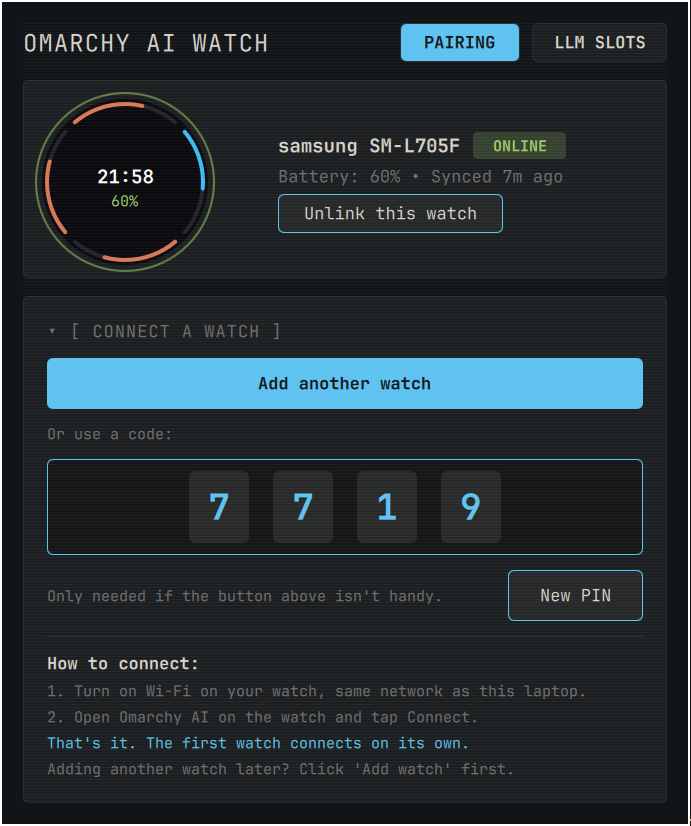
The widget panel, Pairing tab: a live preview of the watch face, the paired device with its battery and last sync, an Add another watch button, a four-digit fallback code, and the how-to-connect steps.
Pairing. A live preview of what the watch is showing, the paired device, its battery and how long ago it synced — then one button to add the next watch. The four-digit code below it is only for setups driven from a terminal with no widget on screen.
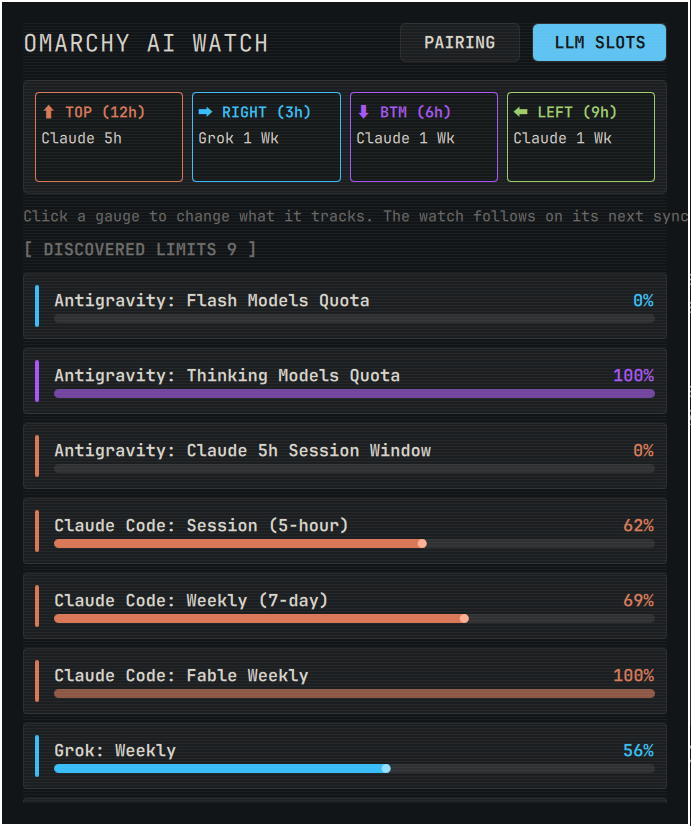
The widget panel, LLM Slots tab: four gauge slots at the top and a list of discovered limits with progress bars.
LLM slots. Every limit found on the machine, with what is left of it. Click a gauge to change what it tracks; the watch follows on its next sync.

The watch face

Built in Watch Face Format, so the face itself ships no code. It binds to the four complications on its own the moment you pick it.

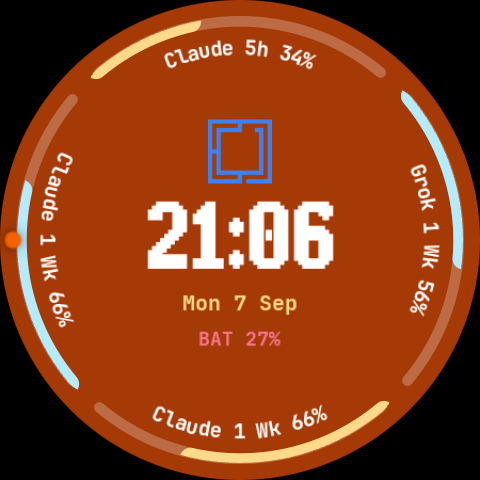
The same watch face on a deep orange background, its gauges drawn in gold and ice blue instead of green and blue.
Thirteen backgrounds, nine logo colours. Each one carries its own pair of gauge colours, kept away from the background in both hue and brightness — gold and ice blue here, green and blue on black above — so an arc never disappears into the ground behind it.
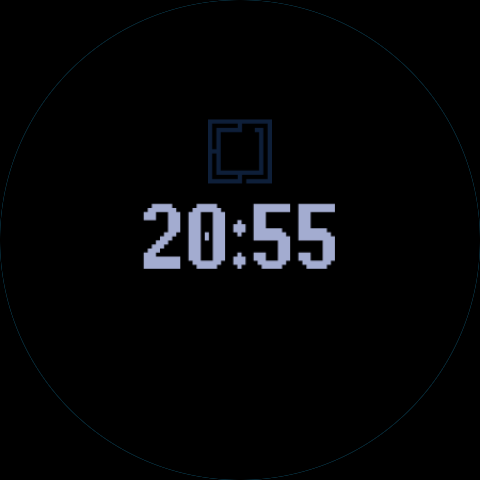
The watch face in always-on mode: a dim clock on pure black, with the arcs hidden.
Always-on goes black. Whatever background you pick, ambient mode drops to true black and hides the arcs. On an OLED panel that is the difference between a face you can leave on all day and one you cannot.

Setup

Three pieces, in this order: the Omarchy widget on the laptop, the Wear OS app on the watch, then the watch face. The app is what pairs and feeds the numbers; the face is what draws them.

1 · Laptop

Omarchy widget

Install the plugin, then click Set up this laptop so the watch can reach the machine.

2 · Watch

Wear OS app

Install Omarchy AI Usage, tap Connect, approve on the laptop.

3 · Watch

Watch face

Install Omarchy AI Usage Watchface and pick it. The four arcs fill in on their own.

1

Omarchy widget — add the plugin and set up this laptop

omarchy plugin add https://github.com/gladimdim/omarchy-ai-companion.git --enable

Open the AI Watch widget in the bar. If the laptop is not ready yet, the panel jumps to the SETUP tab on its own. Click Set up this laptop. That one button starts the background daemon, starts discovery, and unlocks the firewall (one system password prompt for the firewall step). The daemon starts on its own the first time you open the widget — the button is there for the firewall and for a re-check.

Prefer a terminal? This does the same thing:

~/.config/omarchy/plugins/gladimdim.omarchy-ai-watch/setup.sh
2

Wear OS app — install Omarchy AI Usage, then pair

On the watch, install Omarchy AI Usage from Google Play. Wear OS 3 or newer. Open the app.

Put the watch on the same Wi-Fi as the laptop. A Galaxy Watch parks its Wi-Fi radio while it is tethered to a phone over Bluetooth — open the watch Wi-Fi settings and wait until it has an address.

On the laptop, open the widget’s PAIRING tab and click Add another watch (that opens a 120-second window). On the watch, tap Connect. A prompt appears on the laptop — click Approve. Nothing is typed on the watch. A 4-digit code is still there as a fallback if you are driving this from a terminal with no widget on screen.

3

Watch face — install Omarchy AI Usage Watchface, then pick it

On the watch, install Omarchy AI Usage Watchface from Google Play. Wear OS 5 or newer — the face uses Watch Face Format v2 features that older releases cannot render.

Long-press the current face, find Omarchy AI Usage in the picker, and tap it. The four arcs bind to the app’s complications automatically; there is nothing to assign by hand. Open Customize if you want a different background or logo colour.

The face is a clock on its own. The arcs stay empty until the Wear OS app from step 2 is installed and paired.

The Wear OS app & watch face

Both are live on Google Play, as two listings — Watch Face Format cannot share an APK with the Kotlin app. Install the app first (it pairs and supplies the numbers), then the face (it draws them). The app is also where you check the link to the laptop and reassign each gauge from the wrist.

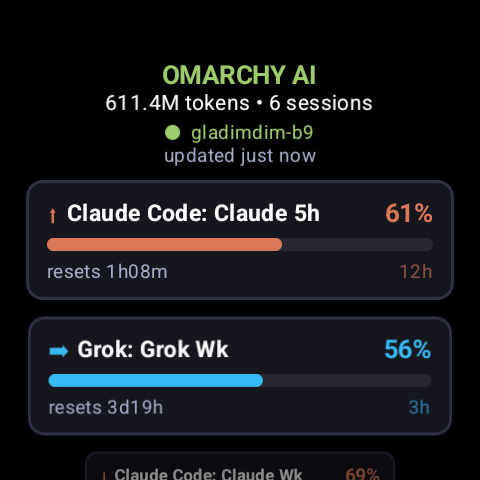
The watch app dashboard: total tokens and sessions, the connected laptop's name, and quota cards with progress bars and reset times.
Dashboard. Every tracked limit with what is left of it and when it resets, under a live link to the laptop it came from.
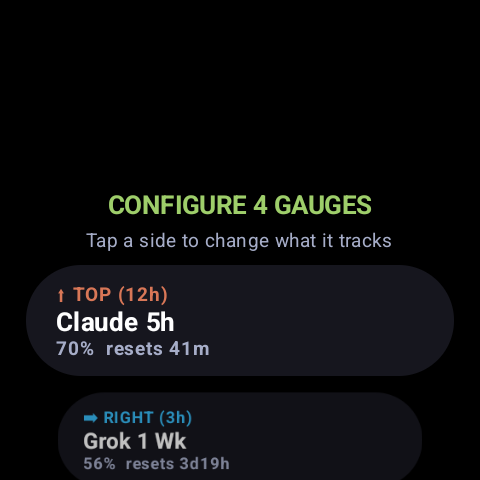
The watch app gauge configuration screen: cards for TOP, RIGHT, BOTTOM and LEFT, each naming the limit it tracks.
Gauges, from the wrist. Each side of the face is a slot you can reassign on the watch itself — no need to reach for the laptop.

Google Play listings

Point the watch camera at a code, or open the matching listing from the Play Store app on the watch. Tested on a Galaxy Watch (SM-L705F).

  • 1. Wear OS app — live on Google Play. Omarchy AI Usage (com.gladimdim.omarchy.ai.watch). Wear OS 3+, free, Tools. Pairing, dashboard, complications, quota alerts.
  • 2. Watch face — live on Google Play. Omarchy AI Usage Watchface (com.gladimdim.omarchy.ai.watch.watchface). Wear OS 5+, free, Personalization. Install this after the app.
  • Same Wi-Fi as the laptop. A Galaxy Watch parks its Wi-Fi radio while tethered to a phone over Bluetooth; the app says so and offers the Wi-Fi settings screen.
  • No phone app needed. The watch talks to the laptop directly.
  • Prefer to build it yourself? The watch side lives in ai-omarchy-wearos.

Wear OS app

Loading QR…

Live on Google Play

Watch face · Wear OS 5+

Loading QR…

Live on Google Play